Open Users & Teams
Sign in to HubSpot, click the Settings icon in the top navigation bar, then choose Users & Teams from the left-hand menu.
In the upper-right, click Add users → Create new.
Enter our email address
Enter the email address below as the new user. Keep Send email invites to these users enabled so HubSpot sends us the invitation.
Give us the access needed for the website
HubSpot lets you either use a template or assign permissions manually. Choose Start from scratch or Manually assign permissions, then enable the website-related tools we have asked for.
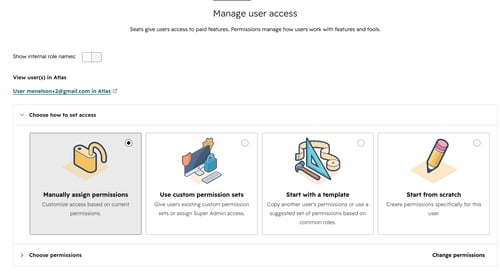
Actual HubSpot permissions screen from HubSpot's current documentation.
If you are unsure which individual permissions are required, add the user first with limited access and we can tell you exactly what is missing.
Send the invitation
Review the user's seat and permissions, then click Create user or Add user. HubSpot will email us an invitation.
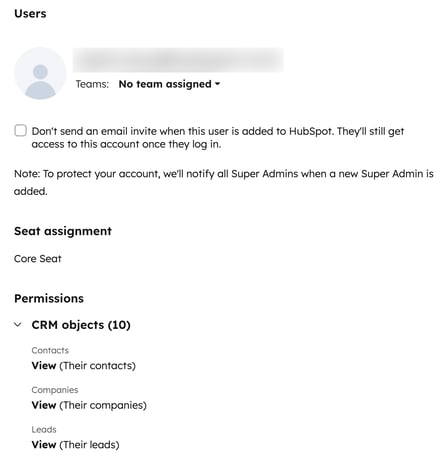
Actual HubSpot review screen from HubSpot's current documentation.
A note about access
HubSpot permissions can be changed at any time from Settings → Users & Teams. This is safer than sharing a login and lets you remove our access cleanly if it is no longer needed.